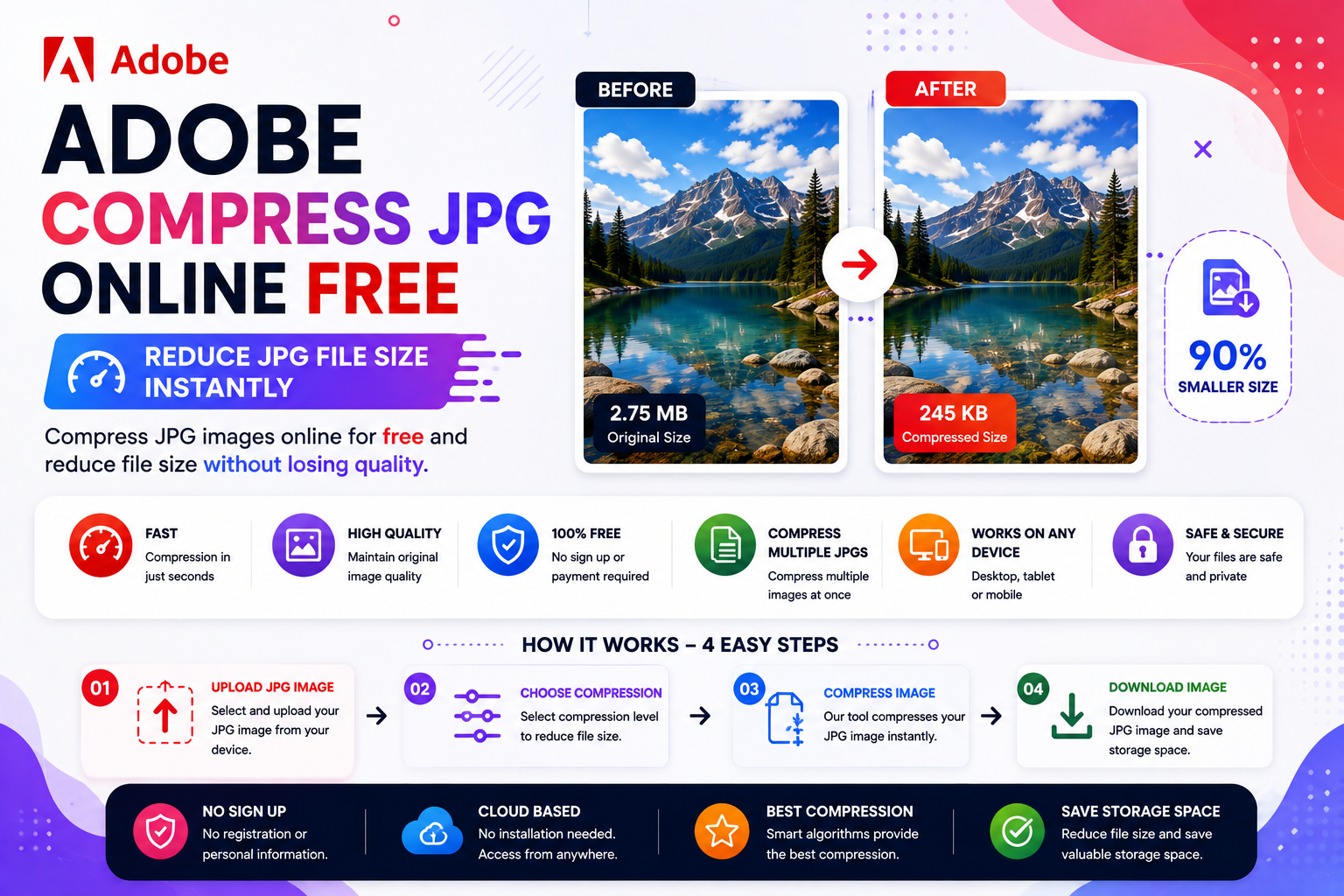
Images are one of the most important elements of the modern web. Whether you’re designing a website, creating a blog post, sharing photos on social media, or sending documents through email, images help communicate information faster than text. However, large image files can also create problems by slowing down websites, consuming storage space, and increasing upload and download times.
One of the most widely used image formats is JPG (also written as JPEG). Although JPG files are already compressed compared to formats like BMP or TIFF, images captured by modern smartphones and DSLR cameras can still be several megabytes in size.
This is why Adobe Compress JPG tools have become essential for students, developers, bloggers, photographers, businesses, and digital marketers who need smaller image files.
Compressing JPG images helps reduce file size while maintaining excellent visual quality. Smaller images load faster, improve website performance, reduce bandwidth consumption, and provide a better experience for users.
If you’re looking for a fast, secure, and beginner-friendly solution, try the CodexJunction Adobe Compress JPG Tool.
👉 https://codexjunction.com/apps/adobe-compress-jpg.html
In this complete guide, you’ll learn what JPG compression is, how it works, why it’s important, how it improves SEO, and how to compress JPG images online in just a few clicks.
What Is a JPG File?
A JPG (Joint Photographic Experts Group) file is a compressed image format designed to store photographs and digital images efficiently.
The two common file extensions are:
.jpg.jpeg
Both formats are exactly the same.
JPG is widely used because it provides an excellent balance between image quality and file size.
You’ll find JPG images in:
- Smartphone photos
- DSLR camera images
- Blog posts
- Company websites
- Product catalogs
- Social media
- Online portfolios
- Digital advertisements
Because of its universal compatibility, JPG has become the standard image format for the web.
What Does “Compress JPG” Mean?
JPG compression is the process of reducing the file size of an image while preserving as much visual quality as possible.
Instead of changing the dimensions of an image, compression optimizes how image data is stored.
For example:
| Original ImageCompressed Image | |
|---|---|
| 8 MB | 1.5 MB |
| 5 MB | 850 KB |
| 3 MB | 450 KB |
The visual difference is often minimal, but the reduction in file size is significant.
This makes images easier to store, upload, and display.
Why Compress JPG Images?
Modern smartphones can capture photos in:
- 12 MP
- 24 MP
- 48 MP
- 64 MP
- 108 MP
- Even higher resolutions
As a result, a single image may exceed 10 MB.
Uploading these files directly can lead to:
- Slow websites
- Longer upload times
- Higher bandwidth usage
- Larger storage requirements
- Poor user experience
Compressing JPG images solves these issues while maintaining excellent image quality.
Benefits of Adobe Compress JPG
Faster Website Loading
Large images are one of the biggest reasons websites load slowly.
Compressed JPG images reduce page size, allowing websites to load much faster.
Better SEO
Google values websites that provide fast, smooth experiences.
Optimized images help improve:
- Core Web Vitals
- Mobile performance
- Page speed
- User engagement
Image optimization is an important part of technical SEO.
Save Storage Space
Compressed images use less space on:
- Computers
- Smartphones
- Cloud storage
- External drives
- Company servers
This allows you to store more files without upgrading storage.
Faster File Sharing
Smaller JPG images upload and download more quickly.
This is particularly useful for:
- Email attachments
- Telegram
- Slack
- Microsoft Teams
- Google Drive
Lower Bandwidth Usage
If your website serves thousands of visitors every day, compressed images reduce server bandwidth and hosting costs.
Use the Free Adobe Compress JPG Tool
You can use the Adobe Compress JPG tool from CodexJunction to compress JPG images online and reduce file sizes quickly.
👉 https://codexjunction.com/apps/adobe-compress-jpg.html
Key features include:
- Free online compression
- No software installation
- No registration required
- Fast browser-based processing
- High-quality image optimization
- Secure file handling
- Mobile-friendly interface
How JPG Compression Works
The compression process is simple.
Step 1 – Upload the JPG Image
Choose the image from your computer or mobile device.
Step 2 – Analyze the Image
The tool examines image data to determine the best optimization strategy.
Step 3 – Compress the File
Unnecessary image data is optimized while preserving visual quality.
Step 4 – Download the Compressed JPG
Save the optimized image and use it anywhere.
The entire process typically takes only a few seconds.
Lossy vs Lossless Compression
Understanding compression types helps beginners choose the right option.
Lossy Compression
Lossy compression removes some image information that is less noticeable to the human eye.
Advantages:
- Smaller file size
- Faster loading
- Excellent for websites
- Better for email attachments
Disadvantages:
- Slight quality reduction at very high compression levels
Lossless Compression
Lossless compression reduces file size without removing image data.
Advantages:
- Original quality preserved
- Better for editing and archiving
Disadvantages:
- Larger files than lossy compression
Most websites use lossy compression because it provides the best balance between quality and performance.
Adobe Compress JPG vs Original JPG
| FeatureOriginal JPGCompressed JPG | ||
| File Size | Large | Small |
| Website Speed | Moderate | Faster |
| Email Friendly | Limited | Excellent |
| Storage Usage | High | Low |
| Mobile Performance | Average | Better |
| SEO | Moderate | Improved |
Why Website Speed Matters
Website speed directly affects:
- Visitor satisfaction
- Search engine rankings
- Bounce rate
- Conversion rates
- Online sales
Large images are often the biggest contributor to slow-loading websites.
Compressing JPG images is one of the easiest ways to improve overall site performance.
How JPG Compression Helps SEO
Search engines reward websites that load quickly and provide a better user experience.
Compressed JPG images contribute to:
- Faster loading times
- Better mobile usability
- Lower bounce rates
- Improved Core Web Vitals
- Enhanced crawl efficiency
While image compression alone won’t guarantee top rankings, it supports many important SEO factors.
Understanding Core Web Vitals
Google measures page experience using Core Web Vitals.
Largest Contentful Paint (LCP)
Large images are often responsible for poor LCP scores.
Compressed JPG images improve loading speed.
Cumulative Layout Shift (CLS)
Properly sized compressed images reduce layout shifts during loading.
Interaction to Next Paint (INP)
Faster-rendering pages create smoother interactions for users.
Who Should Use Adobe Compress JPG?
Almost everyone working with digital images can benefit.
Students
Compress assignment images before uploading to learning platforms.
Bloggers
Improve page speed and search engine optimization.
Developers
Optimize images for websites and web applications.
Photographers
Share high-quality photos without huge file sizes.
Digital Marketers
Create faster landing pages and email campaigns.
eCommerce Store Owners
Optimize product images for quicker loading and improved shopping experiences.
Businesses
Reduce storage costs and simplify file sharing.
Common Use Cases
Adobe Compress JPG is commonly used for:
- Website optimization
- Online stores
- Portfolio websites
- Blog images
- Product catalogs
- Social media graphics
- Email attachments
- Digital marketing
- Documentation
- Online learning
Best Practices for Compressing JPG Images
Follow these recommendations:
- Resize images before compressing.
- Avoid compressing the same image multiple times.
- Keep original copies.
- Use descriptive filenames.
- Add meaningful alt text.
- Test image quality after compression.
- Compress before uploading to your website.
Common Mistakes Beginners Make
Many beginners unknowingly slow down their websites by:
- Uploading 10 MB camera images directly.
- Ignoring image optimization.
- Using unnecessarily large dimensions.
- Compressing images repeatedly.
- Forgetting mobile optimization.
Avoiding these mistakes improves both performance and user experience.
Adobe Compress JPG for Students
Students frequently upload scanned documents, assignments, and project images.
Compressing JPG files helps:
- Meet upload limits
- Speed up submissions
- Save device storage
Adobe Compress JPG for Businesses
Businesses compress JPG images for:
- Product photos
- Employee documents
- Marketing materials
- Presentations
- Reports
- Internal documentation
Smaller images improve productivity and reduce operational costs.
Adobe Compress JPG for Developers
Developers optimize JPG images to:
- Improve Lighthouse scores
- Enhance Core Web Vitals
- Reduce bandwidth usage
- Increase page speed
- Improve SEO
Image optimization is a standard practice in modern web development.
Frequently Asked Questions (FAQs)
What is JPG?
JPG is a compressed image format used for photographs and digital images.
Is JPG different from JPEG?
No.
JPG and JPEG are identical formats. The difference is only the file extension.
Can I compress JPG online?
Yes.
The Adobe Compress JPG tool from CodexJunction works directly in your web browser.
Does JPG compression reduce quality?
A small amount of quality may be reduced with lossy compression, but the difference is usually difficult to notice when using moderate compression.
Is Adobe Compress JPG free?
Yes.
The Adobe Compress JPG tool from CodexJunction is completely free.
Can I compress JPG images on mobile?
Yes.
The tool works on Android, iPhone, tablets, and desktop computers.
Do I need to install software?
No.
Everything works online without downloads or installations.
Official Adobe Image Optimization Resources
For additional information about Adobe image and creative tools, visit the official Adobe website: https://www.adobe.com/
Related Tools on CodexJunction
If you’re working with images, documents, and websites, explore these useful tools available on CodexJunction.
Image Optimization Tools
- Adobe Compress JPG
- Adobe Compress JPEG
- Image Compressor
- Image Resizer
- Image to WebP Converter
- JPG to PNG Converter
- PNG to JPG Converter
- WebP to JPG Converter
- BMP to JPG Converter
PDF Tools
- JPG to PDF Converter
- PNG to PDF Converter
- BMP to PDF Converter
- PDF to JPG Converter
- PDF Compressor
- PDF Merger
- PDF Splitter
File Conversion Tools
- TXT to JPG Converter
- MOV to JPG Converter
- Image Format Converter
- QR Code Generator
Learn Web Development with CodexJunction
Along with free online tools, CodexJunction offers educational resources for beginners and professionals, including:
- HTML Tutorials
- CSS Tutorials
- JavaScript Tutorials
- TypeScript Guides
- React.js Tutorials
- Node.js Tutorials
- Express.js Tutorials
- Python Programming
- SQL Tutorials
- MongoDB Guides
- Git & GitHub Tutorials
- Frontend Interview Questions
- Backend Interview Questions
- Technical SEO Guides
- Website Performance Optimization
- Core Web Vitals Explained
- Image Optimization Techniques
These tutorials are designed to help freshers understand modern web development, programming, performance optimization, and technical SEO using practical examples.
Why Choose the CodexJunction Adobe Compress JPG Tool?
The CodexJunction Adobe Compress JPG tool combines speed, simplicity, and high-quality image optimization.
Advantages include:
- Completely free
- Beginner-friendly interface
- Browser-based processing
- No software installation
- No account creation required
- High-quality compressed output
- Fast image optimization
- Secure processing
- Works on Windows, macOS, Linux, Android, and iOS
Whether you’re compressing one image or hundreds, the tool provides consistent and reliable performance.
Compress JPG Images Online Now
Ready to use Adobe Compress JPG online to reduce your JPG file sizes without compromising quality?
Use the free Adobe Compress JPG Tool from CodexJunction:
👉 https://codexjunction.com/apps/adobe-compress-jpg.html
No installation.
No registration.
Fast compression.
Secure browser-based processing.
Perfect for websites, blogs, online stores, emails, presentations, and social media.
Final Thoughts
JPG remains one of the most widely used image formats because it delivers an excellent balance between image quality and file size. However, images captured by today’s smartphones and professional cameras are often much larger than necessary for web publishing, email sharing, or everyday storage.
Compressing JPG images is one of the easiest and most effective ways to optimize digital content. Smaller images improve website speed, reduce storage requirements, enhance SEO, lower bandwidth usage, and create a smoother experience for users across desktop and mobile devices.
Whether you’re a beginner learning about image optimization, a student submitting assignments, a blogger improving page performance, a developer optimizing Core Web Vitals, or a business owner managing thousands of product images, using a reliable JPG compression tool is an essential part of your workflow.
The CodexJunction Adobe Compress JPG Tool offers a fast, secure, and easy-to-use solution that helps you compress images directly in your browser—without software installation or registration. Start optimizing your JPG images today and build faster websites, share files more efficiently, and improve the overall performance of your digital projects.