
How to Migrate a WordPress Website Manually is an important skill for website owners, developers, freelancers, and beginners who need to move a WordPress website from one hosting server to another.
A WordPress migration means moving your website from one location to another while keeping your website content, design, plugins, themes, media files, users, settings, and database data intact.
You may need to migrate WordPress for several reasons. For example, you may want to:
- Move to a faster hosting provider.
- Change your hosting company.
- Move from shared hosting to a VPS.
- Move a website from development to production.
- Change the server location.
- Move a website to a new domain.
- Create a copy of an existing website.
- Move from a temporary domain to a live domain.
Learning How to Migrate a WordPress Website Manually gives you more control over the migration process because you work directly with the WordPress files and database instead of depending entirely on a migration plugin.
A manual migration mainly involves two important parts:
- WordPress website files.
- WordPress database.
Your website files contain WordPress core files, themes, plugins, uploads, configuration files, and other resources. The database stores important information such as posts, pages, users, settings, comments, and other WordPress data. WordPress’s official documentation explains that both the files and database are required to recreate a complete WordPress installation. (WordPress Backups)
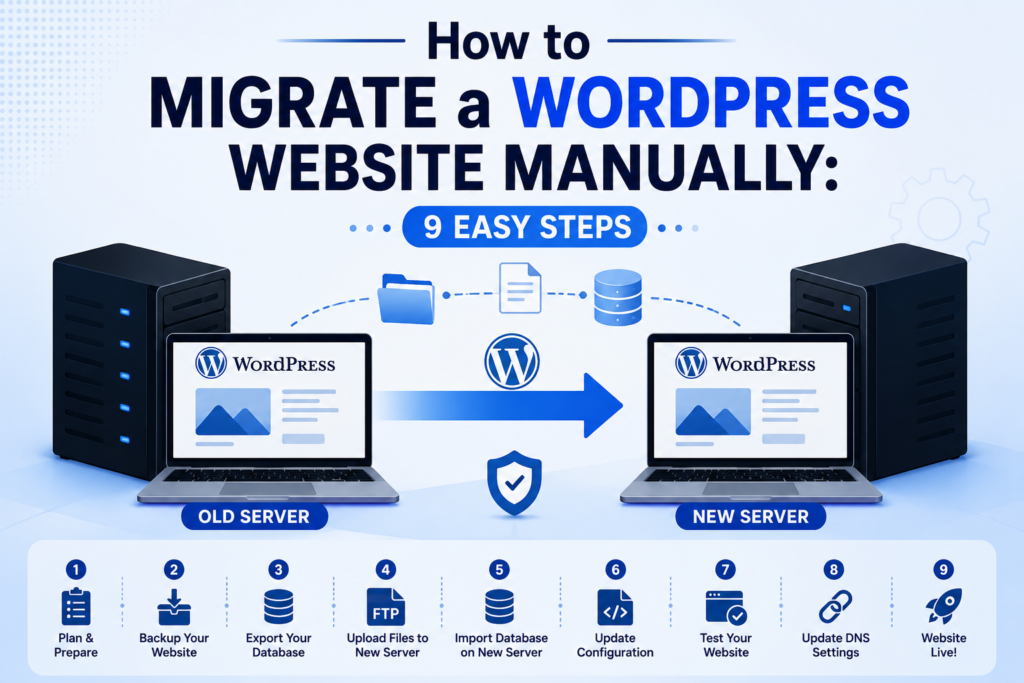
In this beginner-friendly guide, you will learn How to Migrate a WordPress Website Manually step by step, including how to back up the old website, export the database, upload files, create a new database, update wp-config.php, replace URLs, configure DNS, test the website, and troubleshoot common problems.
What Is a Manual WordPress Migration?
Before learning How to Migrate a WordPress Website Manually, it is useful to understand what manual migration means.
A manual WordPress migration means transferring the website’s files and database yourself rather than using a migration plugin or automated hosting service.
A typical migration looks like this:
Old WordPress Website
        |
        |-- WordPress Files
        |
        |-- Database
        |
        v
Backup
        |
        v
New Server
        |
        |-- Upload Files
        |
        |-- Create Database
        |
        |-- Import Database
        |
        |-- Update wp-config.php
        |
        v
Test Website
        |
        v
Update DNS
        |
        v
Live Website
This process may look complicated at first, but How to Migrate a WordPress Website Manually becomes much easier when you divide the work into small steps.
What You Need Before Migrating WordPress
Before starting How to Migrate a WordPress Website Manually, prepare the following:
Access to the Old Website
You should have access to:
- Hosting control panel
- FTP or SFTP
- File Manager
- phpMyAdmin or another database management tool
- WordPress administrator account
Access to the New Server
You should have access to:
- New hosting account
- File Manager or SFTP
- Database management tool
- Database name
- Database username
- Database password
- Database host
Domain Access
If you are moving the website to another server but keeping the same domain, you will also need access to your DNS settings.
Backup Storage
Keep a copy of the old website files and database somewhere outside the hosting account.
WordPress recommends keeping backups of both your files and database because a database backup alone does not contain your themes, plugins, media, wp-config.php, and other website files. (WordPress Database Backup Documentation)
How to Migrate a WordPress Website Manually Step by Step
Now let’s learn How to Migrate a WordPress Website Manually using a practical migration process.
For this example, assume:
Old website:
https://example.com
New server:
A new hosting account or VPS.
We will keep the same domain name. If you are also changing the domain, additional URL replacement steps are required.
Step 1: Create a Complete Backup
The first and most important step in How to Migrate a WordPress Website Manually is creating a complete backup.
Do not start the migration without a backup.
You need to back up:
- WordPress core files
- Themes
- Plugins
- Media uploads
wp-config.php.htaccess- Custom files
- Database
The database and files should ideally come from approximately the same point in time. WordPress recommends treating the files and database as one backup set. (WordPress Backup Documentation)
Back Up WordPress Files
You can use your hosting File Manager, FTP, or SFTP.
Open the directory where WordPress is installed.
You may see files and folders such as:
wp-admin/
wp-content/
wp-includes/
index.php
wp-config.php
.htaccess
wp-login.php
wp-settings.php
Select all WordPress files and create a ZIP archive if your hosting panel supports it.
For example:
public_html/
can be compressed into:
wordpress-backup.zip
Download the ZIP file to your computer.
Why Is This Important?
If something goes wrong during How to Migrate a WordPress Website Manually, you can restore the original website from the backup.
Do not delete the old website immediately after migration.
Keep it available until the new website has been fully tested.
Step 2: Export the WordPress Database
The second major part of How to Migrate a WordPress Website Manually is exporting the database.
WordPress stores much of its content and configuration in the database.
Depending on your hosting provider, you may use:
- phpMyAdmin
- cPanel
- MySQL command line
- Hosting database tools
For beginners, phpMyAdmin is usually the easiest option.
Find the Database Name
Open the old website’s:
wp-config.php
Look for:
define( 'DB_NAME', 'database_name' );
define( 'DB_USER', 'database_user' );
define( 'DB_PASSWORD', 'database_password' );
define( 'DB_HOST', 'localhost' );
The DB_NAME value tells you which database belongs to the WordPress website.
Export the Database Using phpMyAdmin
Open phpMyAdmin.
Select your WordPress database.
Click:
Export
Choose:
Quick
Then select:
SQL
Click:
Export
Save the resulting file.
For example:
wordpress-database.sql
Now you have:
wordpress-backup.zip
wordpress-database.sql
These two files contain the main components required for the manual migration.
Step 3: Prepare the New Server
The next step in How to Migrate a WordPress Website Manually is preparing the new hosting account.
Make sure the new server supports the requirements needed by your WordPress version, theme, plugins, and hosting environment.
You should have:
- A website directory.
- PHP.
- MySQL or MariaDB.
- A database.
- A database user.
- Correct file permissions.
- Domain or temporary access.
If you are using a Linux hosting environment, the website directory may look like:
public_html/
or:
/var/www/example.com/
depending on your hosting setup.
Step 4: Create a New WordPress Database
Creating the database is an essential part of How to Migrate a WordPress Website Manually.
Open your hosting control panel or database management tool.
Create:
Database Name
Database Username
Database Password
For example:
Database:
newsite_wp

Username:
newsite_user

Password:
Use-a-strong-password
Make sure the database user has the required permissions for the WordPress database.
If you are using cPanel, you can normally create the database and user through:
MySQL Databases
Then assign the user to the database.
If you are using phpMyAdmin directly, your hosting provider may have a different process for creating users and databases.
WordPress requires access to a MySQL or MariaDB database for a standard installation. (WordPress Installation FAQ)
Step 5: Upload WordPress Files to the New Server
The next step in How to Migrate a WordPress Website Manually is uploading the website files.
You can use:
- File Manager
- FTP
- SFTP
- SSH
- Hosting migration tools
If you have a ZIP archive, upload:
wordpress-backup.zip
to the new website directory.
Then extract it.
Make sure the files are placed in the correct directory.
For example:
public_html/
├── wp-admin/
├── wp-content/
├── wp-includes/
├── wp-config.php
├── index.php
└── .htaccess
Avoid an Incorrect Nested Directory
A common mistake is accidentally creating:
public_html/wordpress/wp-admin/
when you actually need:
public_html/wp-admin/
If the website files are inside an unexpected nested folder, the website may not load correctly.
Step 6: Import the WordPress Database
Now import the database into the new server.
Open phpMyAdmin.
Select the new empty database.
Click:
Import
Select:
wordpress-database.sql
Then start the import.
After the import finishes, you should see WordPress tables.
Typical WordPress tables include:
wp_options
wp_posts
wp_postmeta
wp_users
wp_usermeta
wp_terms
wp_termmeta
wp_term_relationships
wp_comments
wp_commentmeta
Your table prefix may not be wp_.
For example, it could be:
abc123_
The table prefix is defined in wp-config.php.
WordPress’s official migration documentation also recommends exporting the old database and importing it on the new server when moving an installation. (Moving WordPress)
Step 7: Update wp-config.php
Updating wp-config.php is one of the most important steps in How to Migrate a WordPress Website Manually.
Open:
wp-config.php
Find:
define( 'DB_NAME', 'old_database' );
define( 'DB_USER', 'old_user' );
define( 'DB_PASSWORD', 'old_password' );
define( 'DB_HOST', 'localhost' );
Change the values to match your new server.
For example:
define( 'DB_NAME', 'newsite_wp' );
define( 'DB_USER', 'newsite_user' );
define( 'DB_PASSWORD', 'your-new-password' );
define( 'DB_HOST', 'localhost' );
Your database host may not always be localhost.
Some hosting providers give you a specific database hostname.
Use the database host provided by your hosting company.
Do Not Change Unrelated Settings
Your wp-config.php may also contain:
- Authentication keys
- Salts
- Table prefix
- Debug settings
- Custom constants
- Caching configuration
Do not remove these values unless you know they need to be changed.
WordPress documentation explains that wp-config.php contains important configuration information and may need updating when the database name, user, password, or host changes. (WordPress Migration Documentation)
Step 8: Update the WordPress Site URL
If you are keeping the same domain, you may not need to change the WordPress URLs.
However, if you are changing the domain or moving from one URL to another, you need to update the stored site URLs.
For example:
Old:
https://oldexample.com
New:
https://newexample.com
WordPress stores important URL information in the database.
The two important values are:
siteurl
home
These are normally found in:
wp_options
WordPress officially documents several ways to change these values, including through the WordPress dashboard, wp-config.php, or directly in the database when necessary. (WordPress Site URL Documentation)
Using wp-config.php Temporarily
For troubleshooting, you can define:
define( 'WP_HOME', 'https://example.com' );
define( 'WP_SITEURL', 'https://example.com' );
Use the correct URL for your new website.
Do not leave temporary troubleshooting settings in place unnecessarily.
Step 9: Replace Old URLs When Changing Domains
If you are only changing hosting and keeping exactly the same domain, you usually do not need a database-wide URL replacement.
However, How to Migrate a WordPress Website Manually becomes more complicated when you also change the domain.
For example:
oldsite.com
becomes:
newsite.com
Simply changing siteurl and home may not update every stored URL.
You may have old URLs inside:
- Posts
- Pages
- Widgets
- Theme settings
- Plugin settings
- Custom fields
- Serialized data
- Media references
You should use a WordPress-aware search-and-replace method that handles serialized data correctly.
WP-CLI provides a wp search-replace command that can update stored URLs, and its --dry-run option can be used to preview changes before making them. WordPress documents this approach for troubleshooting moved sites. (WordPress Troubleshooting Documentation)
Always back up the database before performing a large search-and-replace operation.
How to Migrate a WordPress Website Manually Without Changing the Domain
If you are moving from:
Old Host → New Host
but keeping:
https://example.com
the process is simpler.
You generally need to:
- Back up the old website.
- Export the database.
- Create the new database.
- Upload the WordPress files.
- Import the database.
- Update
wp-config.php. - Test the website.
- Point the domain DNS to the new server.
- Test the live website.
WordPress’s official migration documentation notes that when the database and URLs remain the same, moving the files and database is generally sufficient, with wp-config.php updated if the database credentials change. (Migrating WordPress)
How to Migrate a WordPress Website Manually to a New Domain
If you are changing both the hosting provider and domain, you need additional steps.
For example:
Old:
https://oldsite.com

New:
https://newsite.com
You should:
- Back up the old files.
- Export the old database.
- Upload the files to the new server.
- Create a new database.
- Import the database.
- Update
wp-config.php. - Update
siteurlandhome. - Perform a proper URL search and replace.
- Update media URLs if necessary.
- Check internal links.
- Configure redirects from the old domain.
- Test the new domain.
- Update DNS.
- Check HTTPS.
- Test important pages.
This is an important distinction when learning How to Migrate a WordPress Website Manually because changing hosting and changing domains are not exactly the same task.
How to Test the Migrated WordPress Website
Testing is a critical part of How to Migrate a WordPress Website Manually.
Before changing DNS, test as much as possible.
Check the following.
Homepage
Open:
https://example.com
Make sure the homepage loads correctly.
WordPress Login
Open:
https://example.com/wp-admin/
Check whether you can log in.
Pages
Open several important pages.
Check:
- Headings
- Images
- Buttons
- Links
- Forms
- Layout
- Menus
Posts
Open several blog posts and make sure:
- Content is present.
- Images are visible.
- Categories work.
- Tags work.
- Comments work if enabled.
Media Library
Go to:
WordPress Dashboard → Media → Library
Check whether images and other media files are available.
Plugins
Go to:
Plugins → Installed Plugins
Check whether your plugins are active.
Some plugins may require configuration after migration.
Theme
Check:
Appearance → Themes
Make sure the correct theme is active.
Forms
Test every important form.
For example:
- Contact form
- Quote form
- Newsletter form
- Login form
- Registration form
Search
Test your website’s search feature if it is enabled.
Permalinks
Open:
Settings → Permalinks
You can click Save Changes to refresh the permalink/rewrite configuration when needed.
WordPress’s migration documentation notes that permalink and .htaccess configuration may need attention after moving a site. (Migrating WordPress)
Check the .htaccess File After Migration
The .htaccess file can be important for WordPress websites running on Apache.
A typical WordPress .htaccess file may contain:
## BEGIN WordPress
<IfModule mod_rewrite.c>
RewriteEngine On
RewriteBase /
RewriteRule ^index\.php$ - [L]
RewriteCond %{REQUEST_FILENAME} !-f
RewriteCond %{REQUEST_FILENAME} !-d
RewriteRule . /index.php [L]
</IfModule>
## END WordPress
Your actual configuration may contain additional rules.
Do not overwrite a custom .htaccess file without checking it first.
WordPress recommends making a backup of .htaccess before modifying it during a migration. (Migrating WordPress)
Update DNS After Migration
Once the new website has been tested, the next step in How to Migrate a WordPress Website Manually is changing DNS.
Your domain may use an A record such as:
Type: A
Name: @
Value: NEW_SERVER_IP
For a www subdomain, you may have:
Type: CNAME
Name: www
Value: example.com
Your exact DNS setup depends on your domain and hosting provider.
DNS Propagation
After changing DNS, different users may reach different servers for some time because DNS information can be cached.
During this period, you may see:
- Old website
- New website
- Different results from different networks
Do not immediately delete the old website after changing DNS.
Keep the old hosting active until you are confident that the new website is working correctly.
Enable HTTPS on the New Server
After the migration, verify that HTTPS works correctly.
Open:
https://example.com
Check:
- SSL certificate
- HTTPS redirect
- Images
- CSS
- JavaScript
- Forms
- Login
- Mixed-content warnings
If you moved from HTTP to HTTPS during the migration, make sure stored URLs are updated correctly.
WordPress documentation notes that mixed HTTP and HTTPS URLs can cause problems after a site is moved or SSL is introduced. (WordPress Troubleshooting Documentation)
Common WordPress Migration Problems
Even after following How to Migrate a WordPress Website Manually, you may experience problems.
Here are the most common issues.
1. Error Establishing a Database Connection
This usually means WordPress cannot connect to the database.
Check:
define( 'DB_NAME', 'database_name' );
define( 'DB_USER', 'database_user' );
define( 'DB_PASSWORD', 'database_password' );
define( 'DB_HOST', 'database_host' );
Make sure:
- Database exists.
- User exists.
- Password is correct.
- User has database permissions.
- Database host is correct.
2. 404 Errors on Pages
If the homepage works but internal pages show 404 errors, your permalink or rewrite configuration may need to be refreshed.
Go to:
Dashboard → Settings → Permalinks
Select your preferred permalink structure and click:
Save Changes
If you use Apache, also check .htaccess.
3. Images Are Missing
Missing images can happen because:
wp-content/uploadswas not copied.- File permissions are wrong.
- Old URLs remain in the database.
- HTTPS is causing mixed-content issues.
- Image paths changed.
Check:
wp-content/uploads/
and inspect the image URLs in the browser.
4. WordPress Redirects to the Old Domain
This can happen when the database still contains the old URL.
Check:
wp_options
especially:
siteurl
home
If necessary, perform a proper WordPress-aware search and replace after creating a database backup.
5. WordPress Login Does Not Work
Check whether the site URL is correct.
You can temporarily use:
define( 'WP_HOME', 'https://example.com' );
define( 'WP_SITEURL', 'https://example.com' );
Use the correct URL.
Also check for conflicting redirects, caching, CDN settings, or HTTPS configuration.
WordPress identifies incorrect siteurl and home values as common causes of login and site-access problems after migrations. (WordPress Troubleshooting)
6. CSS or JavaScript Is Not Loading
If the page loads but looks broken, check:
- Browser developer tools.
- CSS URLs.
- JavaScript URLs.
- HTTPS mixed content.
- File permissions.
- Cache.
- CDN settings.
Clear:
- WordPress cache.
- Plugin cache.
- Server cache.
- CDN cache.
- Browser cache.
7. Plugins Stop Working
A plugin may stop working because:
- Its files were not copied.
- Configuration was lost.
- PHP versions differ.
- The plugin requires a database table.
- File permissions changed.
- The plugin conflicts with the new server.
Check the WordPress plugin screen and server error logs.
How to Verify WordPress Files After Migration
When learning How to Migrate a WordPress Website Manually, file verification is useful.
Compare the old and new website directories.
Important folders include:
wp-admin/
wp-content/
wp-includes/
Inside wp-content, check:
plugins/
themes/
uploads/
Make sure custom files have also been copied.
For example:
wp-content/uploads/
may contain thousands of images.
If this folder is missing, your website’s media library may appear empty or images may return 404 errors.
How to Keep the Old Website Online During Migration
A safe migration does not require you to immediately shut down the old website.
A safer process is:
Old Website
     |
     | Backup
     v
New Website
     |
     | Test
     v
Change DNS
     |
     v
Monitor
     |
     v
Keep Old Website Temporarily
     |
     v
Remove Old Website Later
This gives you a recovery option if something goes wrong.
Do not cancel the old hosting account immediately after changing DNS.
Wait until:
- DNS is updated.
- Website works.
- Admin works.
- Forms work.
- Images work.
- Plugins work.
- HTTPS works.
- Important pages work.
- No major errors are present.
Best Practices for Manual WordPress Migration
Following these best practices makes How to Migrate a WordPress Website Manually safer.
Always Back Up First
Never start a migration without a complete backup.
Keep Files and Database Together
Your backup should contain both:
Website Files
+
Database
Do Not Delete the Old Website Immediately
Keep it available until the new website is confirmed to be working.
Check Database Credentials Carefully
A single incorrect database credential can prevent WordPress from loading.
Test Before DNS Changes
If possible, test the new website before pointing the live domain to it.
Use HTTPS
Make sure the new server has a valid SSL certificate.
Check URLs
Pay special attention when changing domains.
Check Media
Verify the entire:
wp-content/uploads/
directory.
Test Forms
Forms are easy to overlook during migration.
Clear Caches
Clear all relevant caches after the migration.
Monitor the Website
Watch for errors after the DNS change.
Manual WordPress Migration Checklist
Before considering How to Migrate a WordPress Website Manually complete, verify each item.
- Old website files backed up.
- WordPress database exported.
- Backup downloaded locally.
- New hosting account prepared.
- New database created.
- New database user created.
- Database permissions assigned.
- WordPress files uploaded.
- Database imported.
wp-config.phpupdated.- Site URL checked.
- Domain URL checked if changed.
- Old URLs replaced if required.
.htaccesschecked.- Permalinks tested.
- WordPress admin tested.
- Homepage tested.
- Important pages tested.
- Blog posts tested.
- Images tested.
- Plugins tested.
- Theme tested.
- Forms tested.
- HTTPS tested.
- DNS updated.
- Cache cleared.
- Old website kept temporarily.
Internal Resources
For readers who want to continue learning website administration and server management, add internal links to related tutorials on your website.
For example, you can link the following related topics where appropriate:
- How to Create Scheduled Website Backups
- How to Set Up a Staging Subdomain
- How to Point a Subdomain to a Server
- How to Configure Apache Virtual Hosts
- How to Configure Nginx for a Website
For the WordPress post, make these actual clickable internal links to the corresponding published URLs on your website. Do not add placeholder URLs if those articles have not yet been published.
A natural internal-link example would be:
Before starting a migration, learn how to create scheduled website backups so you always have a recent recovery copy.
Another example is:
If you are testing the new server before going live, learn how to set up a staging subdomain.
These internal links can help readers discover related tutorials while also improving the internal linking structure of your website.
External Resources
The following are authoritative WordPress resources that readers can use to learn more about manual migration, backups, databases, and troubleshooting:
- WordPress Migrating Documentation — Official documentation explaining how to move WordPress to another server or location.
- WordPress Backup Documentation — Official guidance for backing up WordPress files and database.
- WordPress Database Backup Documentation — Learn different ways to back up and restore the WordPress database.
- WordPress Tools Export Documentation — Learn how WordPress’s built-in export feature works.
- WordPress Installation FAQ — Useful information about WordPress files, databases, hosting, permissions, and installation.
- WordPress Troubleshooting Documentation — Information about common login and URL problems that can occur after moving a website.
These are normal external hyperlinks to official WordPress resources. When adding them in WordPress, make sure the links are not marked nofollow if you want Rank Math to recognize them as DoFollow outbound links.
Frequently Asked Questions
What is manual WordPress migration?
Manual WordPress migration means moving the WordPress website files and database from one server or hosting account to another without relying on an automated migration plugin.
How to Migrate a WordPress Website Manually?
To learn How to Migrate a WordPress Website Manually, back up the website files and database, prepare the new server, create a database, upload the files, import the database, update wp-config.php, check URLs, test the website, and update DNS.
Can I migrate WordPress without a plugin?
Yes. You can migrate WordPress manually by transferring the website files and database yourself.
Do I need to migrate the WordPress database?
Yes. The database contains important WordPress content and settings. A complete migration normally requires both the website files and database. (WordPress Backups)
Do I need to change wp-config.php after migration?
You may need to change wp-config.php if the database name, database username, password, or database host changes. (Migrating WordPress)
Will my WordPress plugins move to the new server?
Yes. Plugins are stored in the wp-content/plugins/ directory and should be included when you copy the complete WordPress files.
Will my images move during migration?
Yes, provided that you copy the wp-content/uploads/ directory and the database contains the correct media information.
Why does my WordPress website show a database connection error after migration?
The most common causes are incorrect database credentials, an incorrect database host, a missing database, or a database user without the required permissions.
Why are my WordPress pages showing 404 errors after migration?
The problem may be related to permalink or rewrite configuration. Go to Settings → Permalinks and save your permalink settings. If you use Apache, check your .htaccess file as well.
How long does a manual WordPress migration take?
The time depends on the website size, database size, hosting speed, DNS changes, and number of files. A small website can be migrated relatively quickly, while a large website may require more preparation and testing.
Can I migrate WordPress to a new domain?
Yes. However, changing the domain requires additional URL updates and testing. You should use a WordPress-aware search-and-replace method when replacing URLs in the database.
Should I delete my old WordPress website immediately?
No. Keep the old website and its backup until the new website has been fully tested and the DNS change has completed successfully.
Final WordPress Migration Verification
After completing How to Migrate a WordPress Website Manually, perform one final review.
Open the website and check:
Homepage
        ↓
WordPress Login
        ↓
Pages
        ↓
Posts
        ↓
Images
        ↓
Menus
        ↓
Forms
        ↓
Plugins
        ↓
Theme
        ↓
Permalinks
        ↓
HTTPS
        ↓
DNS
Also check your browser’s developer console for:
- 404 errors
- JavaScript errors
- Mixed-content warnings
- Missing CSS
- Missing images
Check the server error logs if you find any unexpected problems.
Conclusion
How to Migrate a WordPress Website Manually is a valuable skill for anyone managing WordPress websites.
The process may seem technical at first, but the migration becomes easier when you divide it into clear stages.
First, create a complete backup of the WordPress files and database. Next, prepare the new server and create the required database and user. Then upload the WordPress files, import the database, and update wp-config.php with the new database credentials.
If the domain is changing, update the WordPress URLs and perform a proper database search and replace. If the domain remains the same, the migration is usually simpler because you mainly need to move the files and database and update the server connection details.
After the migration, test the homepage, WordPress dashboard, pages, posts, images, plugins, theme, forms, permalinks, and HTTPS. Once everything works correctly, update the DNS records to point the domain to the new server.
The most important rule when learning How to Migrate a WordPress Website Manually is to never skip the backup step. A complete backup gives you a recovery option if something goes wrong.
By following the steps in this guide, beginners can safely understand How to Migrate a WordPress Website Manually and gain practical experience with WordPress files, databases, hosting, DNS, URLs, and server configuration.
Once you are comfortable with manual migration, you will also have a better understanding of how WordPress works behind the scenes. That knowledge can be useful when managing websites, troubleshooting hosting problems, moving websites between environments, and working with clients as a WordPress developer or website administrator.

CodexJunction Editorial Team creates practical and easy-to-understand technology content covering programming, web development, AI, APIs, cybersecurity, WordPress, hosting, technical SEO, and related technology topics.
The team focuses on clear explanations, useful examples, reliable research, and keeping technical information relevant and up to date.