
How to Create Scheduled Website Backups is an essential skill for website owners, developers, and beginners who want to protect websites from data loss.
Imagine spending months creating a website and suddenly losing important files because of a server failure, accidental deletion, malware infection, database corruption, failed software updates, or a hosting problem. Without a recent backup, recovering the website can be extremely difficult.
A backup creates a copy of important website data so that it can be restored when something goes wrong.
However, manually creating backups is not always reliable. You may forget to take a backup, take one too infrequently, or discover that your latest backup is outdated when you actually need it.
This is why How to Create Scheduled Website Backups is an important part of website maintenance. Scheduled backups automatically create backup copies at predefined intervals such as daily, weekly, or monthly.
In this beginner-friendly guide, you will learn How to Create Scheduled Website Backups, what should be backed up, how often backups should run, how to automate backups using cron jobs, how to create WordPress backups, how to store backups securely, how to test backups, and common mistakes to avoid.
What Is a Scheduled Website Backup?
Before learning How to Create Scheduled Website Backups, you should understand what a scheduled backup means.
A scheduled website backup is an automated process that creates a copy of your website’s important data at a specific time or interval.
For example:
Every day at 2:00 AM
        ↓
Backup Script Runs
        ↓
Website Files Copied
        ↓
Database Exported
        ↓
Backup Compressed
        ↓
Backup Stored Securely
Instead of manually creating a backup every day, the server automatically performs the task according to your schedule.
A scheduled website backup can include:
- Website files.
- Images.
- Videos.
- Configuration files.
- Databases.
- Uploaded documents.
- Themes.
- Plugins.
- Application settings.
- Server configuration where appropriate.
The exact backup requirements depend on the website.
Why Should You Create Scheduled Website Backups?
Learning How to Create Scheduled Website Backups is important because websites can fail for many different reasons.
Common causes of data loss include:
- Accidental file deletion.
- Database corruption.
- Server hardware failure.
- Hosting problems.
- Malware.
- Ransomware.
- Hacking.
- Incorrect website updates.
- Broken plugins.
- Failed migrations.
- Human error.
- Accidental database changes.
- Software incompatibility.
A backup gives you a recovery option when something goes wrong.
For example, suppose you update your website’s theme and the website suddenly displays a critical error.
If you have a recent backup, you may be able to restore the previous working version.
Without a backup, you may have to manually identify and repair the problem.
This makes How to Create Scheduled Website Backups an important part of a broader website security and maintenance strategy.
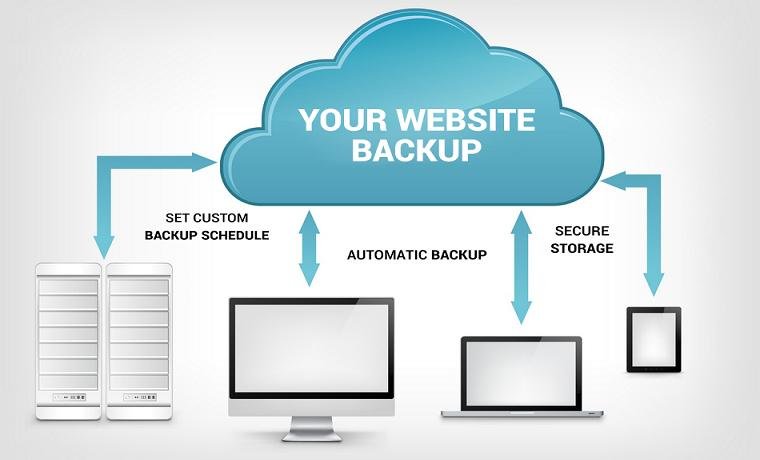
How to Create Scheduled Website Backups: Understand What to Back Up
The first practical step in How to Create Scheduled Website Backups is identifying the data that needs to be protected.
Website Files
Website files may include:
HTML
CSS
JavaScript
PHP
Images
Videos
Fonts
Configuration files
For a PHP website, for example, your project might look like:
/public_html
    index.php
    config.php
    css/
    js/
    images/
    uploads/
These files should be included in your backup strategy.
Database
Many websites depend heavily on databases.
Examples include:
- MySQL.
- MariaDB.
- PostgreSQL.
- Other database systems.
A WordPress website, for example, stores posts, pages, settings, comments, users, and other information in its database.
Backing up only the website files without the database may not be enough to completely restore the website.
User-Uploaded Files
Do not forget files uploaded by website visitors or administrators.
These can include:
- Product images.
- Profile pictures.
- PDF files.
- Documents.
- Videos.
- Media files.
Your backup strategy should include important upload directories.
How to Create Scheduled Website Backups Step by Step
Now let’s look at How to Create Scheduled Website Backups in a practical way.
The general process is:
Identify Data
     ↓
Choose Backup Frequency
     ↓
Choose Backup Method
     ↓
Create Backup
     ↓
Automate Backup
     ↓
Store Backup Securely
     ↓
Test Backup
     ↓
Monitor Backup Results
Step 1: Choose a Backup Frequency
One of the first decisions in How to Create Scheduled Website Backups is deciding how frequently backups should run.
Common schedules include:
Daily Backups
Daily backups are suitable for websites that change frequently.
Examples:
- E-commerce websites.
- News websites.
- Blogs with daily publishing.
- Business applications.
- Membership websites.
Weekly Backups
Weekly backups may be sufficient for websites that do not change frequently.
Examples:
- Company websites.
- Portfolio websites.
- Simple informational websites.
Multiple Backups Per Day
Websites with important transactions or frequently changing data may need more frequent backups.
For example:
Every 6 hours
or:
Every hour
The appropriate frequency depends on how much data you can afford to lose.
RPO and Backup Frequency
A useful concept when learning How to Create Scheduled Website Backups is Recovery Point Objective, or RPO.
RPO answers:
How much recent data can the business afford to lose?
For example, if your RPO is 24 hours, you should have a backup strategy that allows recovery with no more than approximately one day’s worth of data loss.
If your RPO is one hour, daily backups are not sufficient.
This is why backup frequency should be based on business requirements rather than simply choosing “daily” because it is convenient.
Step 2: Choose Where to Store Backups
Learning How to Create Scheduled Website Backups is incomplete without considering backup storage.
Do not rely on only one copy.
Possible storage locations include:
- Separate backup server.
- Cloud storage.
- External storage.
- Hosting provider backup storage.
- Network-attached storage.
- Dedicated backup service.
A particularly important principle is to keep backups separate from the primary website server.
If the server is compromised and your backup is stored on the same server, an attacker may be able to delete or encrypt the backup as well.
The 3-2-1 Backup Strategy
A useful approach to How to Create Scheduled Website Backups is the 3-2-1 backup principle.
It generally means:
3 copies of important data
2 different types of storage
1 copy stored off-site
For example:
Website
   ↓
Primary Server
   ↓
Local Backup
   ↓
Cloud Backup
If the primary server fails, you still have another copy.
If your local backup is damaged, an off-site backup may remain available.
The exact implementation can vary depending on your business and technical requirements.
Step 3: Create a Manual Backup First
Before automating How to Create Scheduled Website Backups, create one manual backup and verify that it works.
For website files, you could create a compressed archive:
tar -czf website-backup.tar.gz /var/www/html
For a MySQL database:
mysqldump -u username -p database_name > database-backup.sql
You can then compress the database:
gzip database-backup.sql
The resulting file may look like:
database-backup.sql.gz
Before creating an automated process, make sure you understand what these commands are doing and that the backup files can actually be created.
How to Create Scheduled Website Backups Using Cron Jobs
For Linux-based servers, cron is one of the most common methods for automating scheduled tasks.
This makes cron particularly useful when learning How to Create Scheduled Website Backups.
A cron job can execute a backup script automatically at a specified time.
For example:
Every day at 2:00 AM
the server can execute:
backup.sh
Step 4: Create a Backup Script
Create a script such as:
nano /usr/local/bin/website-backup.sh
A simplified example might be:
#!/bin/bash

DATE=$(date +"%Y-%m-%d")
BACKUP_DIR="/var/backups/website"
WEBSITE_DIR="/var/www/html"

mkdir -p "$BACKUP_DIR"

tar -czf "$BACKUP_DIR/website-$DATE.tar.gz" "$WEBSITE_DIR"
Make the script executable:
chmod +x /usr/local/bin/website-backup.sh
Run it manually first:
/usr/local/bin/website-backup.sh
Then check whether the backup file was created.
This testing step is extremely important when learning How to Create Scheduled Website Backups.
Step 5: Back Up the Database
If your website uses MySQL or MariaDB, the database should also be backed up.
A simplified script might contain:
#!/bin/bash

DATE=$(date +"%Y-%m-%d")
BACKUP_DIR="/var/backups/website"

mkdir -p "$BACKUP_DIR"

mysqldump -u username -p'PASSWORD' database_name | gzip > "$BACKUP_DIR/database-$DATE.sql.gz"
However, placing a database password directly inside a script can create security risks.
For production systems, use a secure credentials mechanism such as a protected MySQL configuration file or another appropriate secrets-management method.
Never commit database passwords into Git repositories.
Step 6: Combine Website and Database Backups
A more complete backup script can back up both files and the database.
For example:
#!/bin/bash

DATE=$(date +"%Y-%m-%d")
BACKUP_DIR="/var/backups/website"
WEBSITE_DIR="/var/www/html"

mkdir -p "$BACKUP_DIR"

tar -czf "$BACKUP_DIR/files-$DATE.tar.gz" "$WEBSITE_DIR"

mysqldump -u username database_name | gzip > "$BACKUP_DIR/database-$DATE.sql.gz"
This provides two separate backup files:
files-2026-08-14.tar.gz
database-2026-08-14.sql.gz
A production backup system should also include error handling, logging, secure credentials, retention policies, monitoring, and off-site storage.
How to Create Scheduled Website Backups Using Cron
Once your backup script works manually, schedule it.
Open the crontab:
crontab -e
To run the backup every day at 2:00 AM:
0 2 * * * /usr/local/bin/website-backup.sh
The structure is:
minute hour day month weekday command
Therefore:
0 2 * * *
means:
02:00 every day
This is one of the simplest examples of How to Create Scheduled Website Backups on a Linux server.
Step 7: Add Backup Retention
A common mistake when learning How to Create Scheduled Website Backups is keeping every backup forever.
Suppose you create a 2 GB backup every day.
After one year:
2 GB × 365
= 730 GB
Storage requirements can grow quickly.
A retention policy determines how long backups should be kept.
For example:
Daily backups → Keep 7 days
Weekly backups → Keep 4 weeks
Monthly backups → Keep 12 months
A simple Linux cleanup command could be:
find /var/backups/website -type f -mtime +30 -delete
This deletes files older than 30 days.
Use deletion commands carefully. Always test them before applying them to important production backups.
How to Create Scheduled Website Backups for WordPress
WordPress websites require both files and database backups.
A complete WordPress backup normally includes:
WordPress Files
       +
wp-content
       +
Configuration
       +
Database
Important directories can include:
wp-content/uploads/
wp-content/themes/
wp-content/plugins/
The WordPress database contains important information such as:
- Posts.
- Pages.
- Users.
- Settings.
- Comments.
- Metadata.
Therefore, How to Create Scheduled Website Backups for WordPress should not mean copying only the WordPress folder.
Many WordPress hosting providers and backup plugins can automate this process.
When selecting a backup solution, check whether it supports:
- Scheduled backups.
- Database backups.
- File backups.
- Remote storage.
- Automatic retention.
- Restoration.
- Backup verification.
- Incremental backups.
How to Create Scheduled Website Backups Through a Hosting Panel
Many hosting platforms provide built-in backup functionality.
Look for options such as:
Backup
Backup Manager
JetBackup
Scheduled Backups
Restore
Remote Backup
A typical process is:
- Log in to your hosting control panel.
- Open the backup section.
- Select the website.
- Select files and database.
- Choose a backup schedule.
- Select storage.
- Configure retention.
- Enable automatic backups.
- Perform a test restoration.
This can be easier for beginners than creating Linux scripts manually.
However, do not assume that a hosting provider’s backup is sufficient for every situation. Understand where backups are stored, how long they are retained, and whether you can independently restore them.
How to Create Scheduled Website Backups to Cloud Storage
Another important part of How to Create Scheduled Website Backups is sending backups to a separate location.
Cloud storage can provide off-site backup protection.
A typical workflow is:
Website Server
      ↓
Backup Script
      ↓
Compress Backup
      ↓
Encrypt if Required
      ↓
Upload to Cloud Storage
      ↓
Verify Upload
Cloud storage providers may include:
- Amazon S3.
- Google Cloud Storage.
- Microsoft Azure Blob Storage.
- Other object-storage services.
For example, an S3-compatible workflow could use a command-line tool to upload a backup after it is created.
Do not store cloud access keys directly inside publicly accessible website files.
Use appropriate credentials management and permissions.
The backup account should have only the permissions it actually needs.
How to Encrypt Website Backups
When learning How to Create Scheduled Website Backups, remember that backups can contain sensitive information.
A backup might contain:
- Customer information.
- User accounts.
- Email addresses.
- Password hashes.
- Database records.
- API credentials.
- Configuration files.
- Private documents.
If a backup is stolen, it can expose sensitive information.
Therefore, consider encryption for backup data both during transfer and at rest.
For example:
Website
   ↓
Create Backup
   ↓
Encrypt Backup
   ↓
Upload Securely
   ↓
Store With Restricted Access
Keep encryption keys separate from the backup itself.
If the backup and encryption key are stored together, an attacker who obtains both may be able to decrypt the backup.
How to Create Scheduled Website Backups Securely
Security should be part of How to Create Scheduled Website Backups, not something added later.
Follow these practices:
Use Separate Storage
Do not keep your only backup on the same server as your website.
Restrict Access
Only authorized users and services should access backups.
Encrypt Sensitive Backups
Protect backup data during storage and transmission.
Protect Credentials
Do not place credentials in public source code.
Use Least Privilege
Give backup services only the permissions required for their tasks.
Monitor Backup Jobs
A backup that silently fails is not a reliable backup.
Test Restoration
A backup is useful only if it can actually be restored.
How to Test Scheduled Website Backups
Testing is one of the most important parts of How to Create Scheduled Website Backups.
Do not assume a backup is valid simply because a backup file exists.
A file could be:
- Empty.
- Corrupted.
- Incomplete.
- Missing database data.
- Missing uploads.
- Unusable during restoration.
Perform test restorations regularly.
A basic testing process is:
Select Backup
      ↓
Create Test Environment
      ↓
Restore Files
      ↓
Restore Database
      ↓
Configure Application
      ↓
Test Website
      ↓
Verify Data
Check:
- Homepage.
- Login.
- Database records.
- Images.
- Uploaded files.
- Forms.
- APIs.
- Important application functions.
Testing is what separates a backup file from a dependable disaster-recovery process.
How to Create Scheduled Website Backups With Logs
Another useful practice in How to Create Scheduled Website Backups is maintaining backup logs.
Your script should record:
Backup Started
Files Backed Up
Database Backed Up
Backup Uploaded
Backup Verified
Backup Completed
For example:
/usr/local/bin/website-backup.sh >> /var/log/website-backup.log 2>&1
This makes it easier to determine whether a scheduled job actually ran successfully.
You can also configure monitoring or notifications when a backup fails.
For business-critical websites, backup failure notifications are highly recommended.
Full Example of a Basic Scheduled Backup Script
Here is a simplified educational example:
#!/bin/bash

DATE=$(date +"%Y-%m-%d")
BACKUP_DIR="/var/backups/website"
WEBSITE_DIR="/var/www/html"

mkdir -p "$BACKUP_DIR"

echo "Backup started: $(date)"

tar -czf "$BACKUP_DIR/files-$DATE.tar.gz" "$WEBSITE_DIR"

mysqldump -u username database_name | gzip > "$BACKUP_DIR/database-$DATE.sql.gz"

find "$BACKUP_DIR" -type f -mtime +30 -delete

echo "Backup completed: $(date)"
Then schedule it:
0 2 * * * /usr/local/bin/website-backup.sh >> /var/log/website-backup.log 2>&1
This example demonstrates the basic concept of How to Create Scheduled Website Backups, but a production environment should improve it with secure database credentials, backup verification, encryption, remote storage, error handling, monitoring, and restoration testing.
Common Mistakes When Creating Scheduled Website Backups
When learning How to Create Scheduled Website Backups, beginners often make the following mistakes.
1. Backing Up Only Website Files
A database-driven website also needs its database.
2. Storing Backups on the Same Server
If the server fails or is compromised, the backup may be lost too.
3. Never Testing Restoration
A backup that cannot be restored provides false confidence.
4. Keeping No Retention Policy
Unlimited backups can consume large amounts of storage.
5. Hardcoding Passwords
Credentials inside scripts can be exposed accidentally.
6. Ignoring Backup Failures
An automated task may fail because of:
- Full storage.
- Incorrect permissions.
- Database connection problems.
- Network failures.
- Expired credentials.
7. Never Monitoring Backups
Automation does not guarantee success.
Backup vs Website Snapshot
When learning How to Create Scheduled Website Backups, you may hear the term “snapshot.”
A backup is generally a stored copy of data intended for recovery.
A snapshot is typically a point-in-time representation of a storage volume, virtual machine, or system state provided by a hosting or cloud platform.
Snapshots can be useful, but they should not automatically be considered a complete backup strategy.
For example:
Primary Server
     ↓
Snapshot
is not necessarily as resilient as:
Primary Server
     ↓
Local Backup
     ↓
Off-Site Backup
Use the recovery tools appropriate for your infrastructure.
How Often Should You Create Scheduled Website Backups?
There is no single correct schedule for every website.
A useful starting point is:
| Website TypeSuggested Starting Point | |
|---|---|
| Static website | Weekly or before major changes |
| Company website | Daily or several times per week |
| Blog | Daily |
| E-commerce website | Multiple times per day depending on transactions |
| SaaS application | Based on RPO/RTO requirements |
| High-value business application | Frequent automated backups plus replication |
These are starting points, not universal rules.
The correct schedule depends on how frequently your data changes and how much data loss your business can tolerate.
RTO and Website Backups
Another important concept related to How to Create Scheduled Website Backups is Recovery Time Objective, or RTO.
RTO answers:
How quickly does the website need to be restored?
For example:
RPO = 1 hour
RTO = 2 hours
This means the organization may accept approximately one hour of data loss and expects the service to be restored within approximately two hours.
Backup frequency alone does not guarantee an RTO.
You also need:
- Tested restoration procedures.
- Sufficient server capacity.
- Backup accessibility.
- Recovery documentation.
- Personnel who know how to restore the system.
Scheduled Website Backup Checklist
Use this checklist when implementing How to Create Scheduled Website Backups:
- Identify all important website files.
- Identify the website database.
- Include uploaded files.
- Choose an appropriate backup frequency.
- Define RPO.
- Define RTO.
- Choose backup storage.
- Keep an off-site backup.
- Create a manual backup first.
- Automate the backup process.
- Configure cron or hosting automation.
- Add backup retention.
- Protect backup credentials.
- Encrypt sensitive backup data.
- Restrict backup access.
- Create backup logs.
- Monitor backup failures.
- Test restoration regularly.
- Document the recovery process.
- Review the backup strategy periodically.
Frequently Asked Questions
What is a scheduled website backup?
A scheduled website backup is an automated process that creates copies of website files, databases, and other important information at predefined intervals.
How often should I create website backups?
The correct frequency depends on how frequently your website changes and how much data you can afford to lose. Daily backups are a common starting point for many websites.
Is one backup enough?
No. It is safer to maintain multiple backup copies, preferably using different storage locations and at least one off-site copy.
Should I back up my website database?
Yes. If your website uses a database, the database should be included in the backup strategy.
Can I automate website backups?
Yes. You can automate backups using cron jobs, hosting control panels, WordPress plugins, cloud backup services, or infrastructure automation tools.
Are hosting-provider backups enough?
They may be useful, but you should understand their retention period, storage location, restoration process, and availability. For important websites, maintaining an independent backup can provide additional protection.
Where should website backups be stored?
Backups should ideally be stored separately from the production server. Off-site or cloud storage can provide additional protection against server failure and other incidents.
How do I know whether my backup works?
Perform a test restoration. Verify that both website files and databases can be restored and that the website functions correctly.
Should website backups be encrypted?
If backups contain sensitive or confidential information, encryption should be considered. Protect encryption keys separately from the backup data.
Related Internal Links
For a complete website security and maintenance tutorial series, add internal links to these related articles:
- How to Enable HTTPS on a Website
- How to Add Security Headers to a Website
- How to Troubleshoot DNS Propagation Problems
- How to Secure API Keys in Web Applications
- How to Prevent SQL Injection
- How to Prevent Cross-Site Scripting in a Web Application
- How to Protect Forms Against CSRF
- How to Secure File Uploads in PHP
- How to Implement Secure Password Storage
- How to Restrict Admin Access on a Website
Replace these titles with the actual URLs on your website. Since the website domain was not provided, no internal URLs have been invented.
Best Practices for Scheduled Website Backups
The most important principles of How to Create Scheduled Website Backups can be summarized as follows:
- Automate backups so they do not depend on someone remembering to create them.
- Back up both files and databases when your website uses a database.
- Store backups separately from the production server.
- Maintain multiple backup copies.
- Use appropriate retention policies.
- Protect backup credentials.
- Encrypt sensitive backup data where appropriate.
- Monitor backup jobs.
- Test restoration regularly.
- Document the recovery procedure.
- Define RPO and RTO for important websites.
- Review the backup strategy regularly.
A good backup strategy is not simply about creating files. It is about being able to recover the website when something goes wrong.
Conclusion
How to Create Scheduled Website Backups is an essential topic for anyone managing a website.
Manual backups can work for small projects, but automated scheduled backups provide a more reliable way to protect frequently changing websites.
The basic process is:
Identify Website Data
        ↓
Choose Backup Frequency
        ↓
Back Up Files
        ↓
Back Up Database
        ↓
Compress / Encrypt
        ↓
Store Off-Site
        ↓
Apply Retention
        ↓
Monitor
        ↓
Test Restoration
The most important lesson from How to Create Scheduled Website Backups is that creating a backup is only the first step. You must also store backups securely, keep multiple copies, monitor automated jobs, and regularly verify that the backups can actually be restored.
For a small website, a daily or weekly automated backup may be enough. For an e-commerce website or business-critical application, you may need more frequent backups, remote storage, encryption, monitoring, and a documented disaster-recovery process.
By following the principles explained in How to Create Scheduled Website Backups, beginners can create a reliable foundation for protecting websites against accidental deletion, server failures, software problems, malware, and other unexpected incidents.
Recommended External Resources
Useful authoritative resources for this topic include the WordPress Backup documentation, OWASP backup and recovery guidance, AWS Backup documentation, and GNU Cron documentation. These resources can be used as external DoFollow references in the published article.

CodexJunction Editorial Team creates practical and easy-to-understand technology content covering programming, web development, AI, APIs, cybersecurity, WordPress, hosting, technical SEO, and related technology topics.
The team focuses on clear explanations, useful examples, reliable research, and keeping technical information relevant and up to date.